Getting started
From a new organization to a first API call takes a couple of minutes.
Try it free for 14 days
Every organization can start a 14-day free trial of Data Bridge: no payment method needed, one trial per organization and app. Start it from the Try now button of the app in the Exact App Center (you sign in with Exact Online and the portal creates your account and organization), or in the portal under Organization → Subscriptions. When the trial runs out, access stops; subscribing during the trial keeps everything and the subscription starts when the trial ends.
A plan can be upgraded at any time under Organization → Subscriptions: the new plan is charged in full and the unused days of the old one are credited back on a credit note.
Prerequisites
- An account in the Exact Gateway portal (https://apps.mvdw-software.com/exact/portal/) and an organization with an active Data Bridge subscription (subscribed in the portal under Organization → Subscriptions).
- An Exact Online connection for this app: in the portal under Organization → Exact Online connection, choose the Data Bridge app and sign in with the Exact account that may read the data. The same page lists the administrations (divisions) that are enabled for this app, the bridge can only ever see the enabled ones.
- Changes (keys, connected apps, the cache) are made by organization admins, and admin actions require two-factor authentication in the portal. Reading the dashboard and usage works for every member.
The dashboard shows the state of all of this, and stays a quick start until the organization has a key or a connected app:
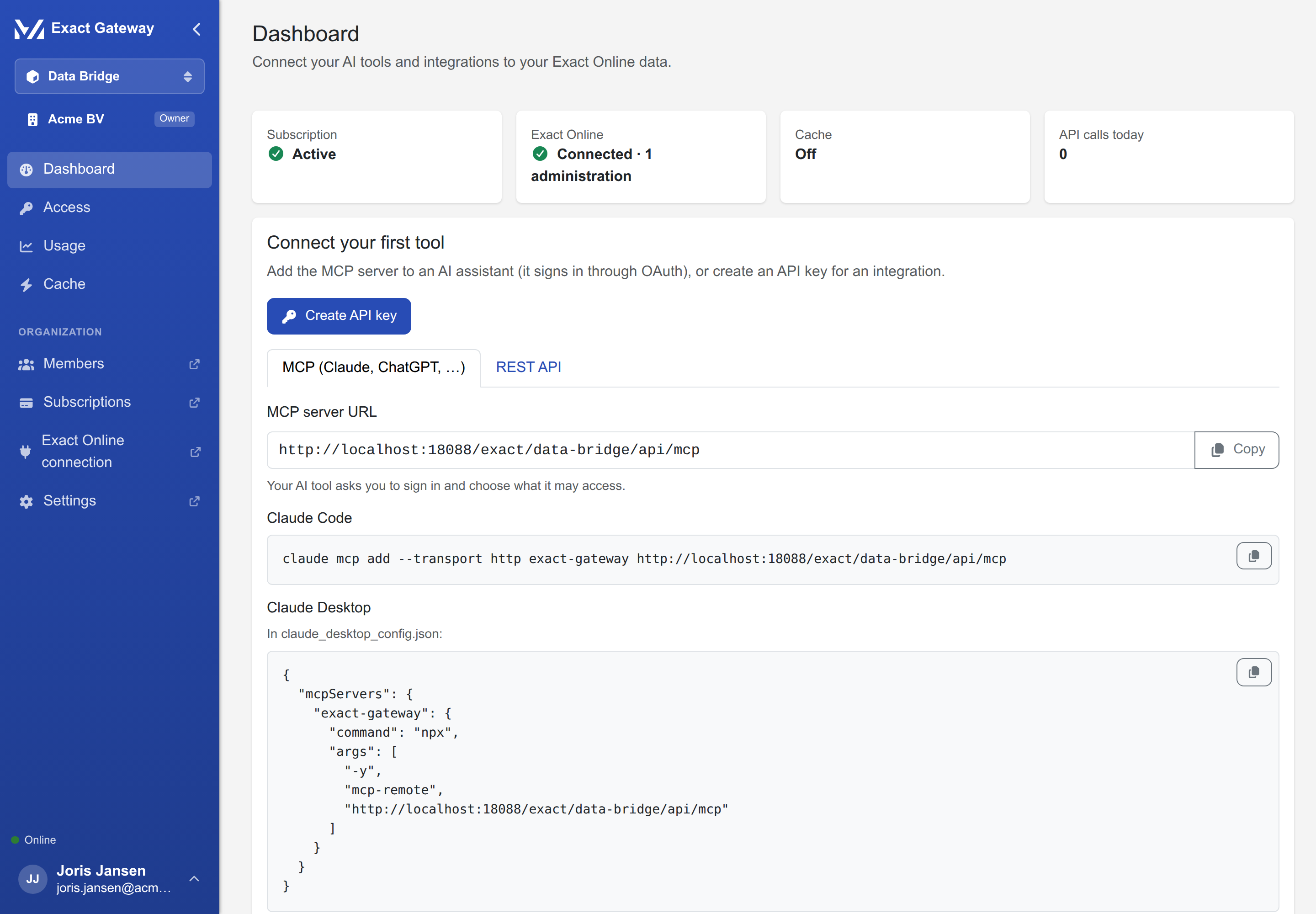
Create your first API key
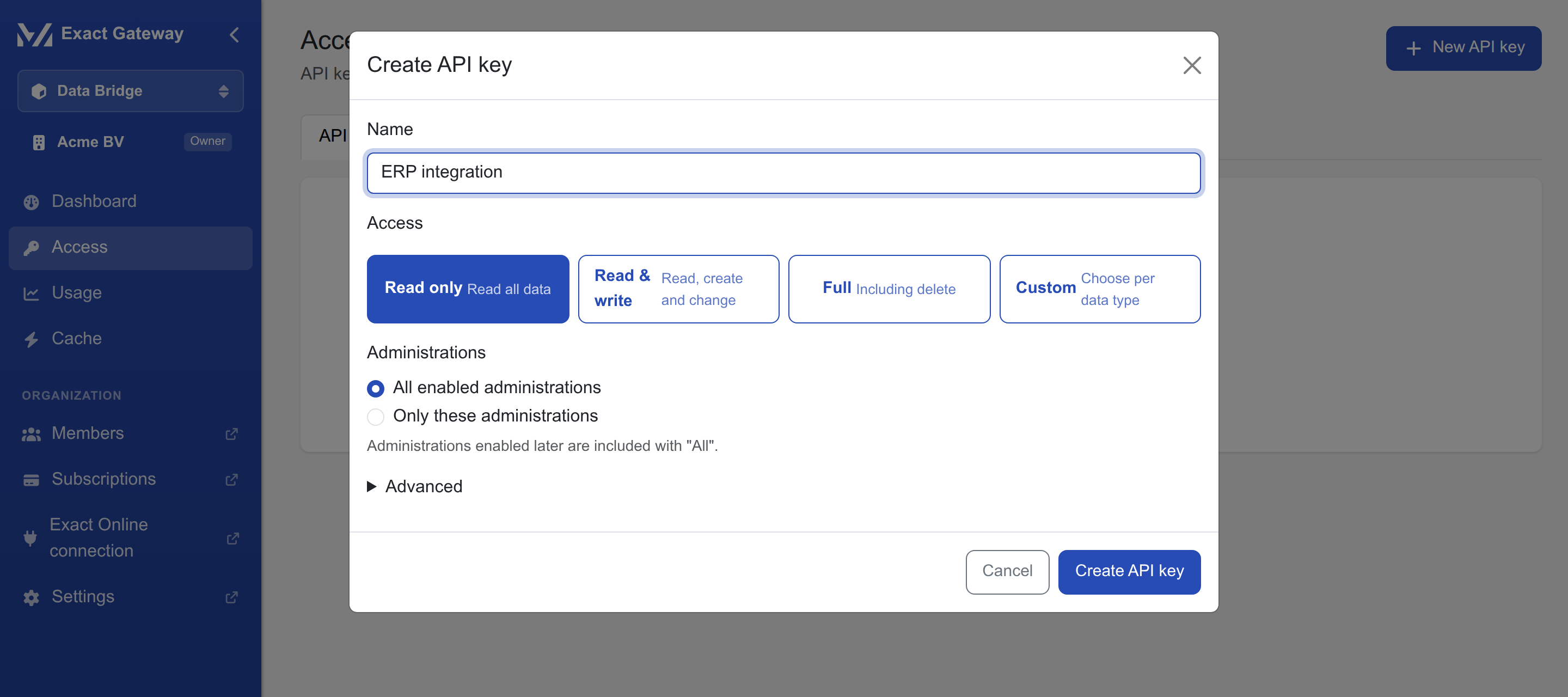
Open Access → New API key. The key gets a name, an access preset, the administrations and, optionally — an allowlist of IP addresses:
| Field | Meaning |
|---|---|
| Name | anything that recognises the consumer, e.g. ERP integration |
| Access | a preset, or Custom for the full matrix of data types × READ / WRITE / DELETE: Read only (read all data), Read & write (read, create and change), Full (including delete), Custom (choose per data type) |
| Administrations | All enabled administrations (the default; administrations enabled later are included automatically) or a selection |
| Allowed IP addresses (advanced) | an allowlist, plain addresses or CIDR ranges; empty means any address |
Press Create API key. The key is shown once:
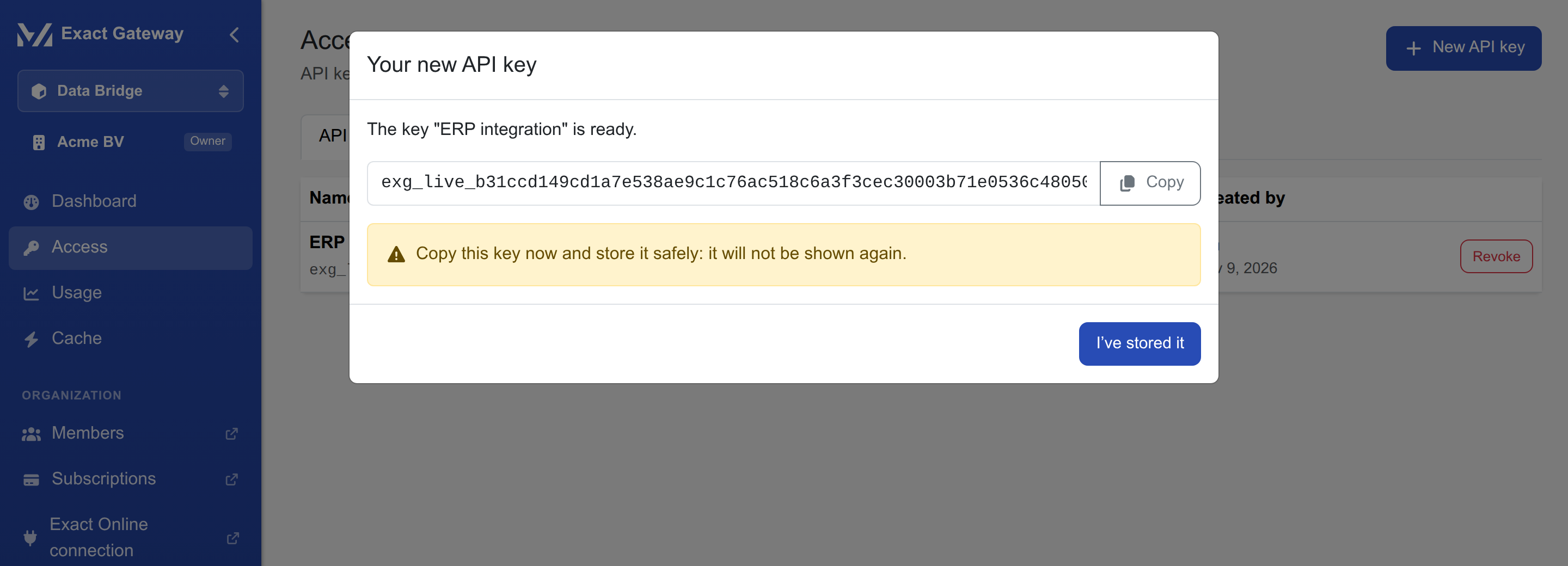
Copy it and store it where the consumer reads it (a secret store, not a repository). It is never shown again — only its first characters are, in the list. If it is lost, revoke it and create a new one.
Make the first call
The dashboard's REST API tab shows the base URL and a first call:
curl -H "Authorization: Bearer exg_live_…" \
  https://apps.mvdw-software.com/exact/data-bridge/api/v1/resources
The answer lists the data types the API exposes, with their filters and sort keys. Then try the data:
# the administrations this key may use
curl -H "Authorization: Bearer exg_live_…" \
  https://apps.mvdw-software.com/exact/data-bridge/api/v1/divisions

# a few customers of administration 321654
curl -H "Authorization: Bearer exg_live_…" \
  "https://apps.mvdw-software.com/exact/data-bridge/api/v1/divisions/321654/accounts?limit=5"
Everything the REST API offers is in Connect your tool → REST API.
Or connect an AI tool instead
If the consumer is Claude, ChatGPT or any other MCP client, skip the key: the dashboard's MCP tab has the server URL and the per-tool setup, and the consent an administrator approves is in Connect your tool → MCP.
You are done
With a key (or a connected app), the dashboard switches from quick start to status and activity, and the Usage page fills up within a minute of the first call. The rest is day to day.