Link a project
Linking a project is a four-step wizard: GitLab project → Exact project → what to sync → review. Every step is checked before the next one opens, and the first sync starts as soon as you confirm, you land on the project's page and watch it run.
From the Overview page press the setup step, or from Projects press Sync a project.
Step 1: the GitLab project
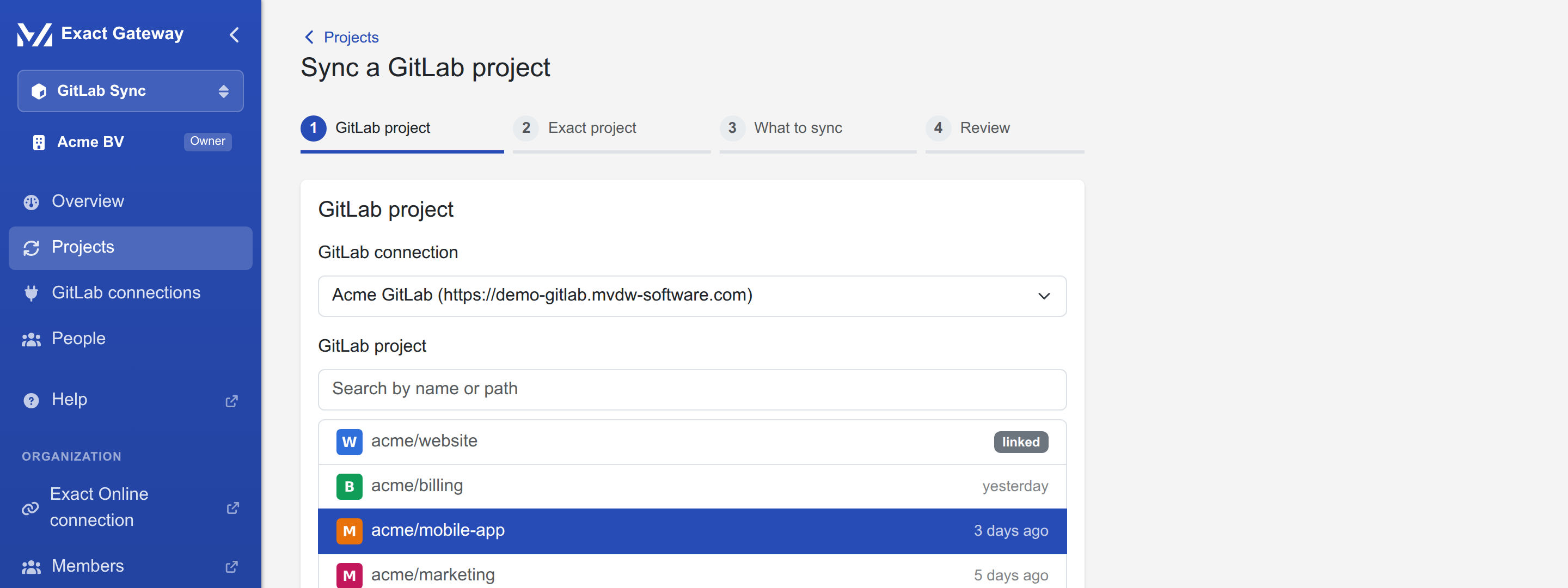
When the organization has more than one GitLab connection, choose the instance first (with one, its name is shown instead). Then search:
- type in the project field, the list filters as you type (debounced), with the project's avatar, its
group/projectpath and its last activity; - press Next once a project is highlighted; already-linked projects are greyed out with a linked badge, so a project cannot be linked twice.
Step 2: the Exact project
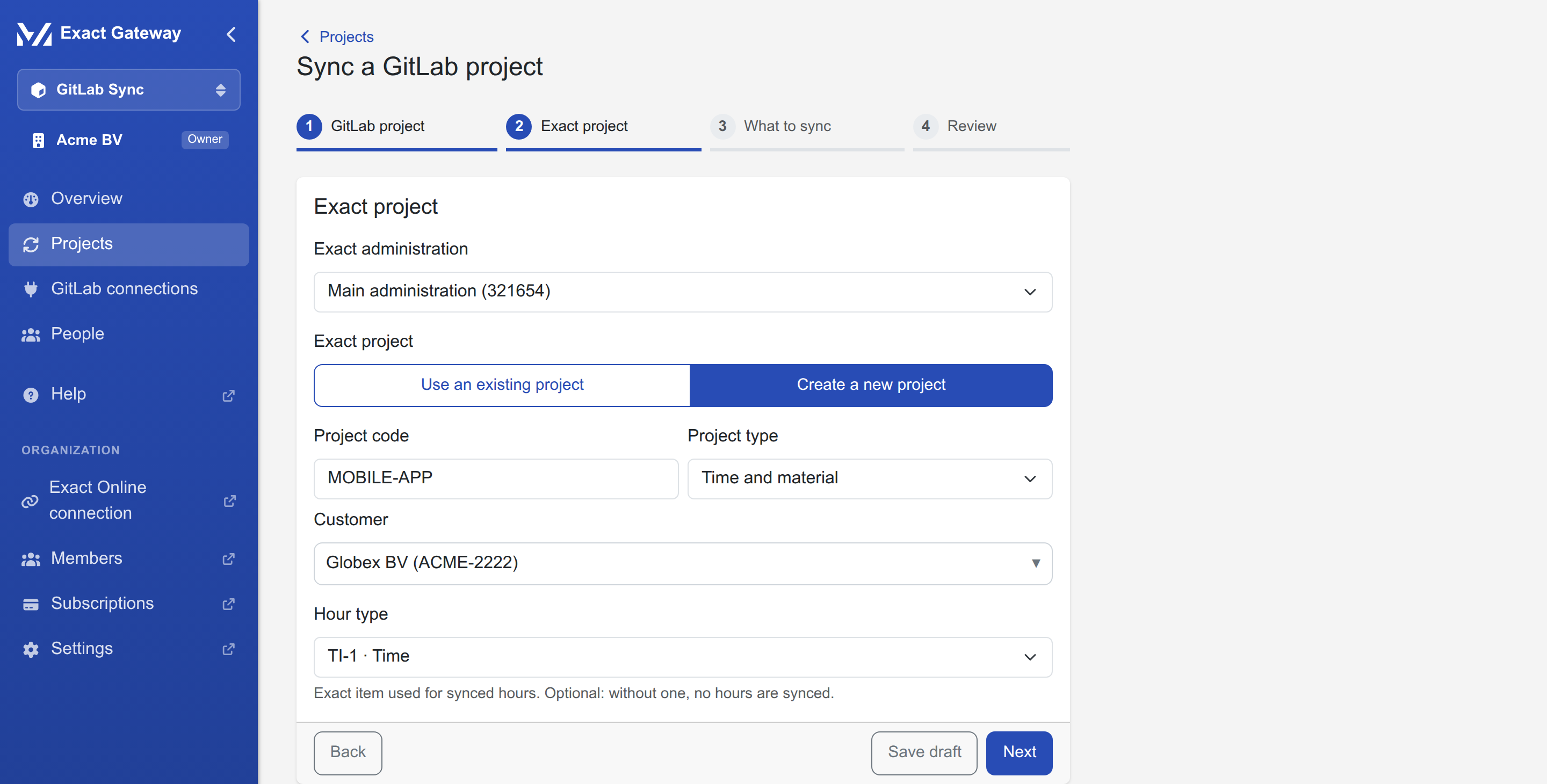
- Administration: the Exact administration (division) the hours go to; only the divisions enabled for GitLab Sync on the connection are offered.
- Exact project: either Use existing (searchable by code or description) or Create new. When you pick
a GitLab project in step 1, the new project's code is prefilled from it (e.g.
group/website→WEBSITE), and you choose the project type (Time & materials, Fixed price, Non billable, Prepaid). - Hour type: the hour item the lines are booked with, prefilled with the one your other links in this administration use most. Leave it empty to let the person in Exact choose per line.
Step 3: what to sync
| Setting | Meaning |
|---|---|
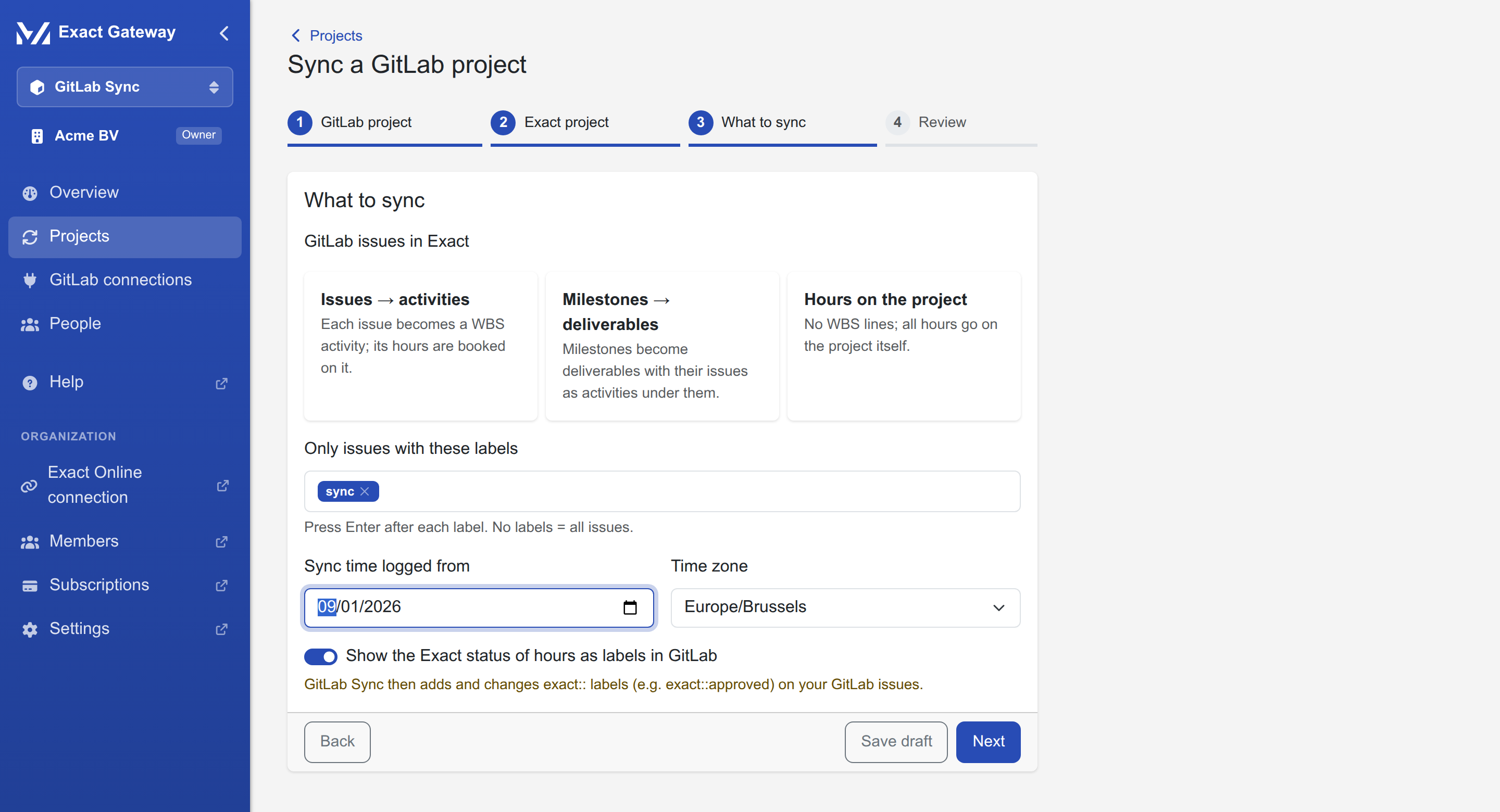
| Issues to WBS | three cards: Issues (every issue becomes a WBS activity), Milestones (milestones become WBS deliverables, issues their activities) or Off (no WBS, hours only). Pick Off when the Exact project already has its own work breakdown |
| Only these labels | when filled, only issues carrying at least one of these labels are synced (chips; Enter adds one). Empty means every issue |
| Sync time logged from | the first date on the first run, earlier logs are not imported (default: the first day of the current month). After the first run every run covers the last 45 days, so this date is not a moving floor |
| Time zone | the zone in which a time log's day is counted when GitLab and Exact disagree about dates (default: your browser's zone) |
| Back-sync status | switch the exact::submitted / approved / rejected labels back to GitLab. On by default when the token can write; needs a token with the api scope. The warning under the switch says exactly what gets written: a label on the issue, and an internal note on a rejection |
Step 4: review
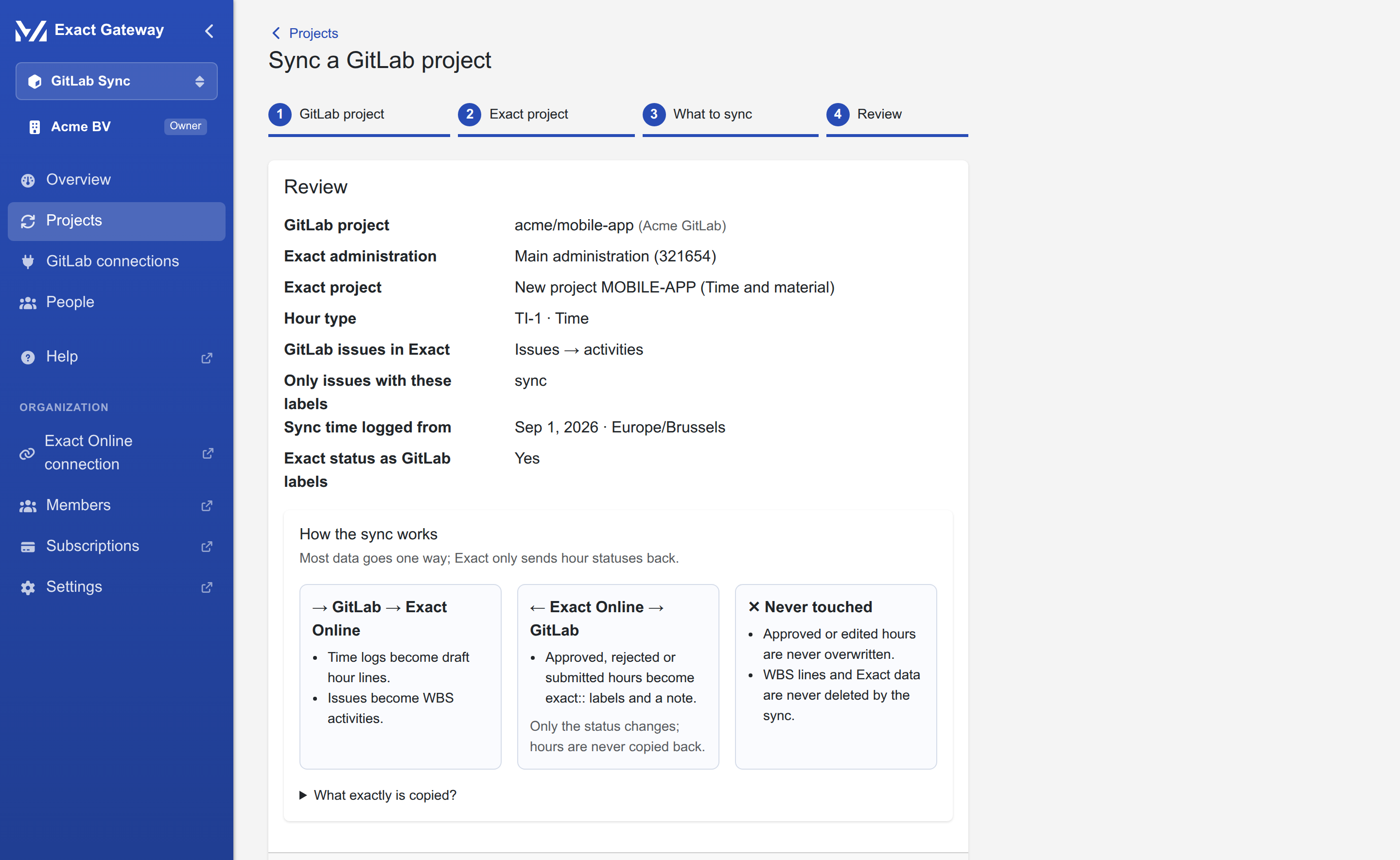
Everything in one list: the project and instance, the administration, the Exact project (or the new code and type), the hour type, the WBS mode, the label filter, the date and zone, and the back-sync. Press Create & run first sync:
You are taken to the project's page with the first run in progress.
The project's page
Each linked project has its own page (Projects → the project name):
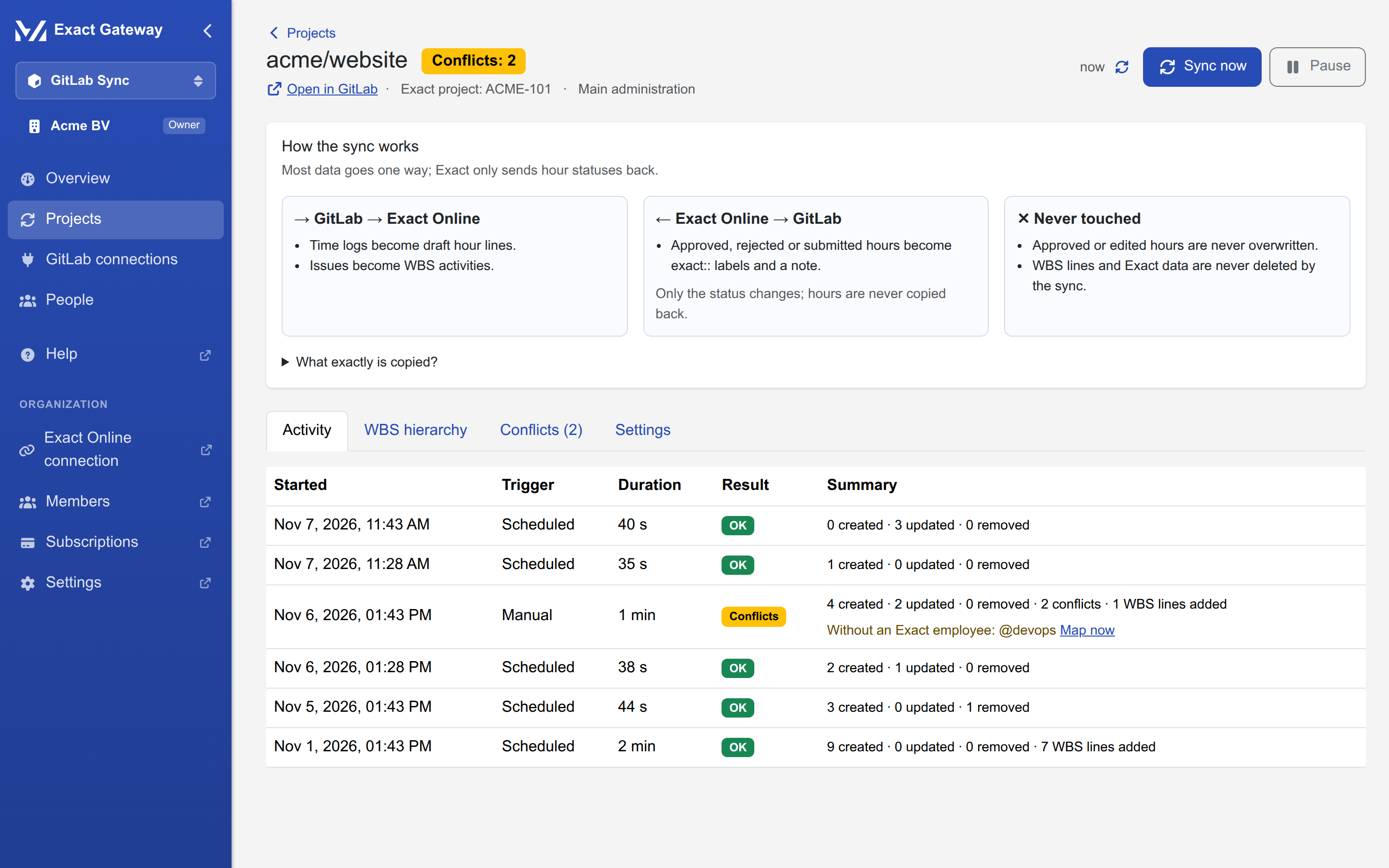
- Header: the GitLab and Exact project as links, the status chip, and the actions Sync now and Pause / Resume.
- Activity: every run with its trigger (schedule, manual, webhook), when it ran, how long it took and a summary of what it did; runs that mention unmapped users link straight to People.
- Conflicts: the runs found a difference that the sync must not decide on its own (an hour line that was already approved in Exact, for example). Each conflict says what GitLab has and what Exact has; the hours stay where they are until a person acts. See Conflicts.
- Settings: the sync mode (Automatic every … minutes or Manual only), the back-sync switch and a danger zone to Remove link. Removing a link stops the sync; the hours already in Exact stay there.
Pausing and removing
- Pause (in the header) keeps the link and its settings; runs are skipped until you resume. Use it for a project that is on hold for a while.
- Remove link (Settings → danger zone) asks for confirmation and deletes the link and its sync state. The draft hour lines and WBS lines that were created in Exact are not touched.