Getting started
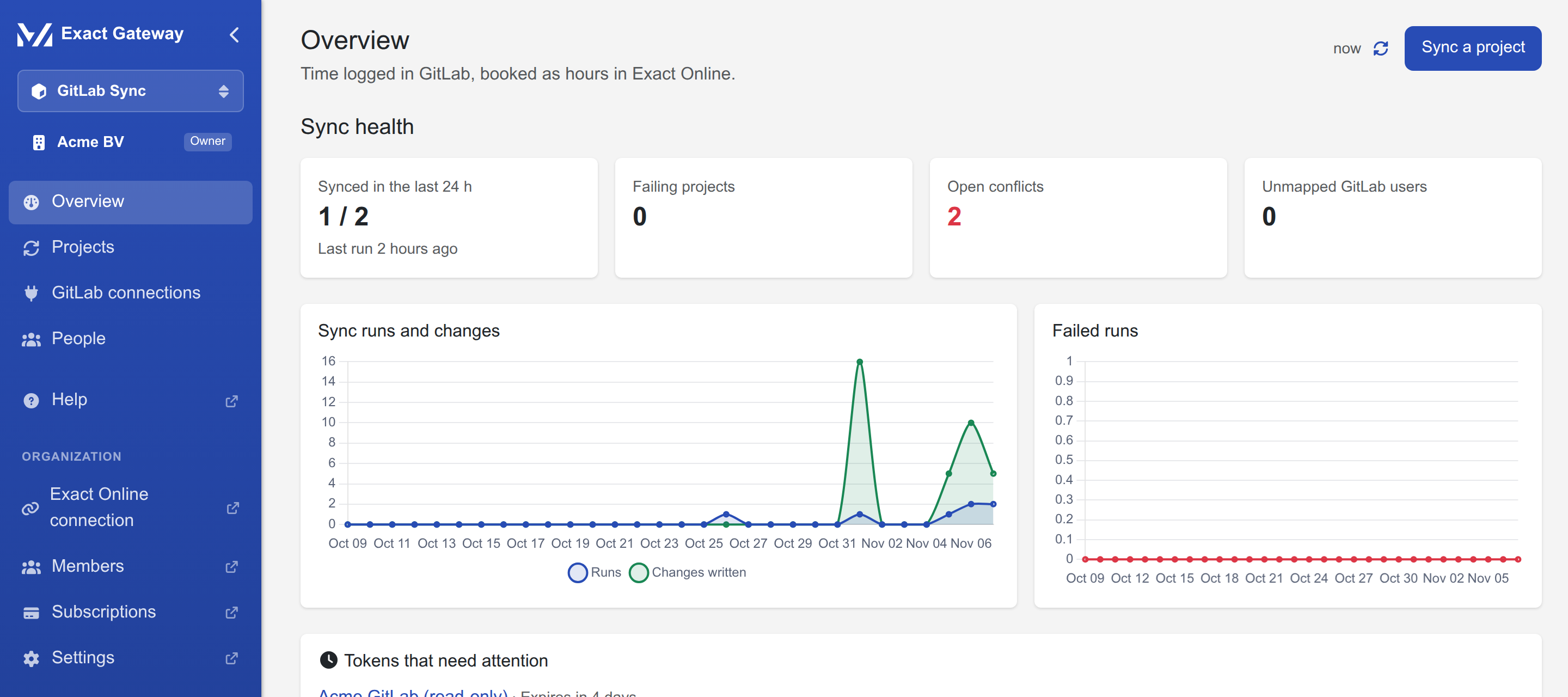
From a new organization to a running sync takes a few minutes. The app's Overview page shows a setup checklist and keeps it until every step is done.
Try it free for 14 days
Every organization can start a 14-day free trial of GitLab Sync: no payment method needed, one trial per organization and app. Start it from the Try now button of the app in the Exact App Center (you sign in with Exact Online and the portal creates your account and organization), or in the portal under Organization → Subscriptions. When the trial runs out, access stops; subscribing during the trial keeps everything and the subscription starts when the trial ends.
A plan can be upgraded at any time under Organization → Subscriptions: the new plan is charged in full and the unused days of the old one are credited back on a credit note.
Prerequisites
- An account in the Exact Gateway portal (https://apps.mvdw-software.com/exact/portal/) and an organization with an active GitLab Sync subscription (subscribed in the portal under Organization → Subscriptions).
- An Exact Online connection for this app: in the portal under Organization → Exact Online connection, choose the GitLab Sync app and sign in with the Exact account that may read the time, projects and employees of the administrations you want to sync. The same connection page lists the administrations (divisions) that are enabled for this app.
- A GitLab instance, gitlab.com or self-hosted, and an account that is a member of the projects to sync.
- Changes (a GitLab connection, a linked project, people) are made by organization admins, and admin actions require two-factor authentication in the portal. Reading the pages works for every member.
Supported GitLab versions
GitLab Sync works with gitlab.com and self-hosted GitLab. We follow GitLab's support policy, the current major version and the two previous major versions, and the compatibility suite runs against one release of every supported major:
| GitLab | Tested release | CI |
|---|---|---|
| 17.x | 17.11.7 | unit, contract and e2e |
| 18.x | 18.11.14 | unit, contract and e2e |
| 19.x | 19.5.3 | unit, contract and e2e |
The unit and contract tests exercise the GitLab client against every release, and the end-to-end sync suite runs once per supported release in CI. The tested releases are GitLab Community Edition; Enterprise Edition exposes the same REST and GraphQL APIs. gitlab.com runs the current release, so it is covered by the newest row. Older versions may work, but they are not supported and not tested. Not sure which version you run? GitLab shows it under Help → Help.
The four steps, in order:
- Connect Exact Online (once, in the portal);
- Add a GitLab connection;
- Link your first project;
- Map the people that appear after the first sync.
Connect Exact Online
In the portal, open Organization → Exact Online connection and choose the GitLab Sync app (each app has its own connection). Sign in to Exact Online and choose the administrations to enable.
Per app, per organization
The portal keeps one Exact connection per organization and per app. Data Bridge and GitLab Sync connect separately, so an organization that uses both connects twice.
Add a GitLab connection
In GitLab Sync, open GitLab connections and press Add GitLab connection.
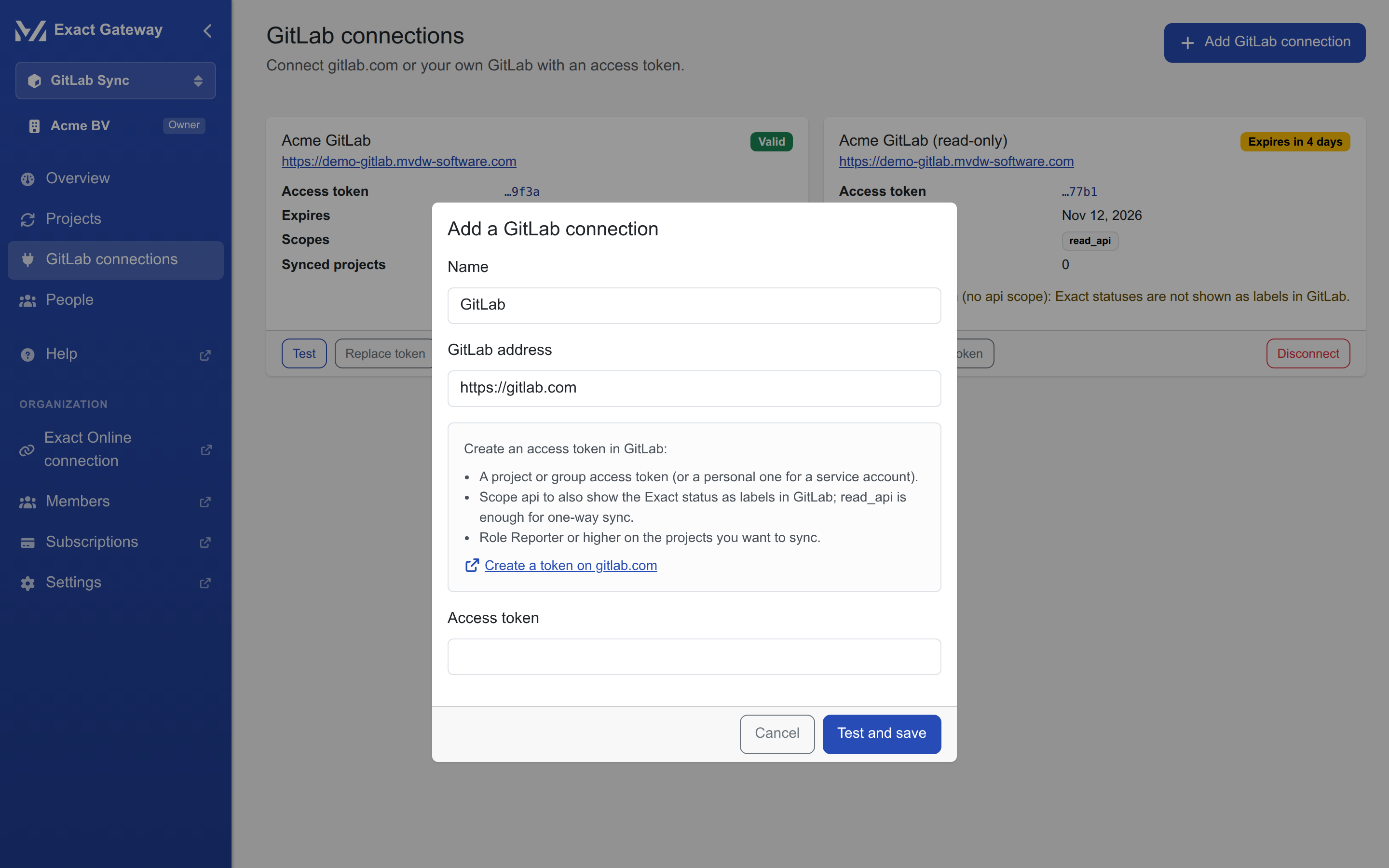
- Name: anything that recognises the instance, e.g.
GitLab.comorour-gitlab. - Address: the base URL, e.g.
https://gitlab.comorhttps://git.acme.com. A trailing slash is removed for you; onlyhttpsis accepted. - Access token: created in GitLab, see below.
The button Test & save checks the token against GitLab before anything is stored; a rejected token is not kept.
Which token to create
Any token with the right scope and access to the projects works; the help box in the dialog links straight to GitLab's new-token page with the name and scope pre-filled.
| Token type | When | Scopes |
|---|---|---|
| Project access token (project settings → Settings → Access Tokens) | the usual choice: it can only reach that project | api for the two-way sync (labels back in GitLab); read_api is enough for one-way, hours only |
| Group access token | several projects of one group | as above, for the whole group |
| Personal access token | one user's projects, or when project/group tokens are not allowed | as above, the user's own access |
Two things to know about the scopes:
- With
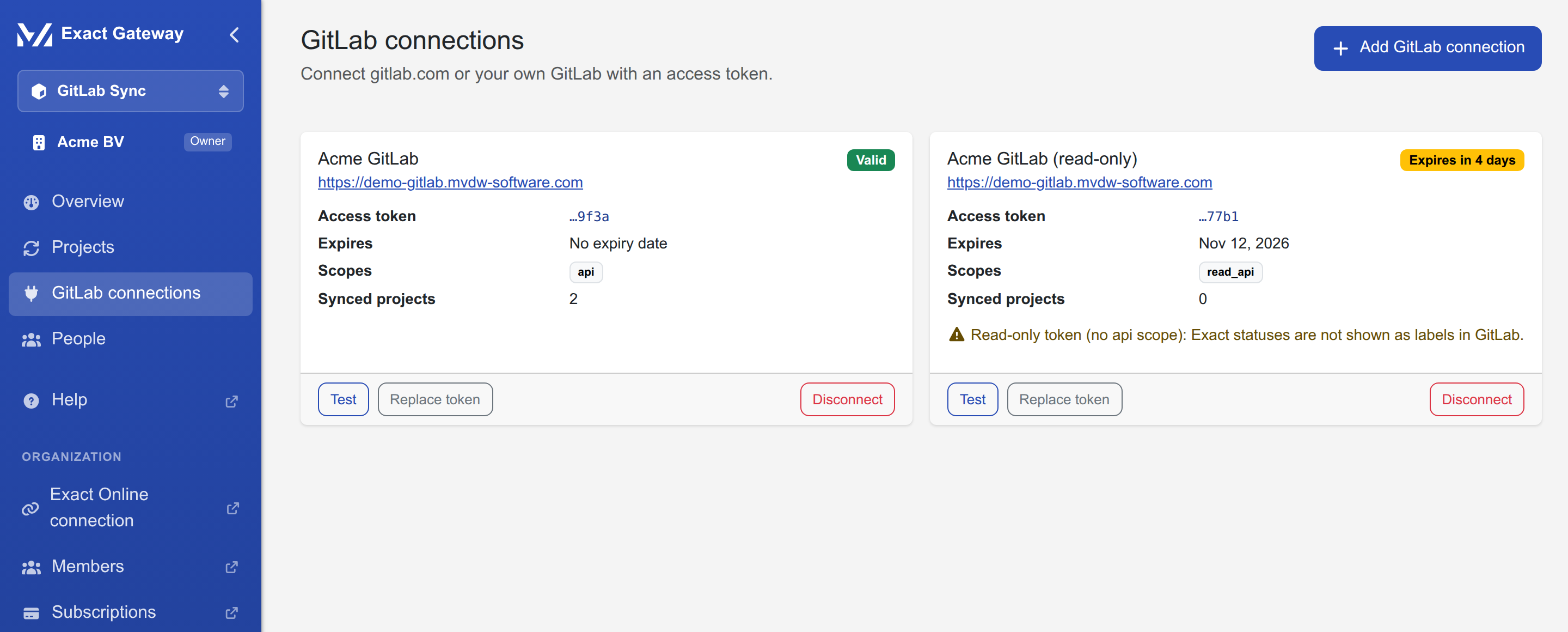
read_apithe sync is one-way: hours go to Exact, but theexact::…status labels are not written back to GitLab, and the back-sync switch in the wizard stays off. The connection card shows a read-only warning. - With
apiGitLab Sync may write labels (and, when you let it, install a webhook) on the projects the token can see. Prefer a project or group token over a personal one, and give the token an expiry date: the connection card warns when the token expires within 14 days.
The connection cards
Each instance is a card with its status, the token's last four characters (the token itself is never shown again), its scopes, its expiry and the number of linked projects:
| Action | What it does |
|---|---|
| Test | re-checks the token and shows the result on the card (e.g. OK as @syncbot, scopes api, read_api) |
| Replace token | types the new token into a masked dialog, tests it, and swaps it when it is valid |
| Remove | disconnects the instance; the confirmation lists every linked project that will stop syncing |
Link your first project
With a connection in place, open Projects → Sync a project and follow the four steps, that is the whole story, with a screenshot per step.
Map the people
After the first sync, the GitLab users who logged time appear under People. Most are matched to an Exact employee automatically on their e-mail; the rest get a suggestion, and unmapped users are flagged until you choose an employee (or Ignore). See People.
When the checklist on the Overview page is fully ticked, it disappears and the page switches to sync health: